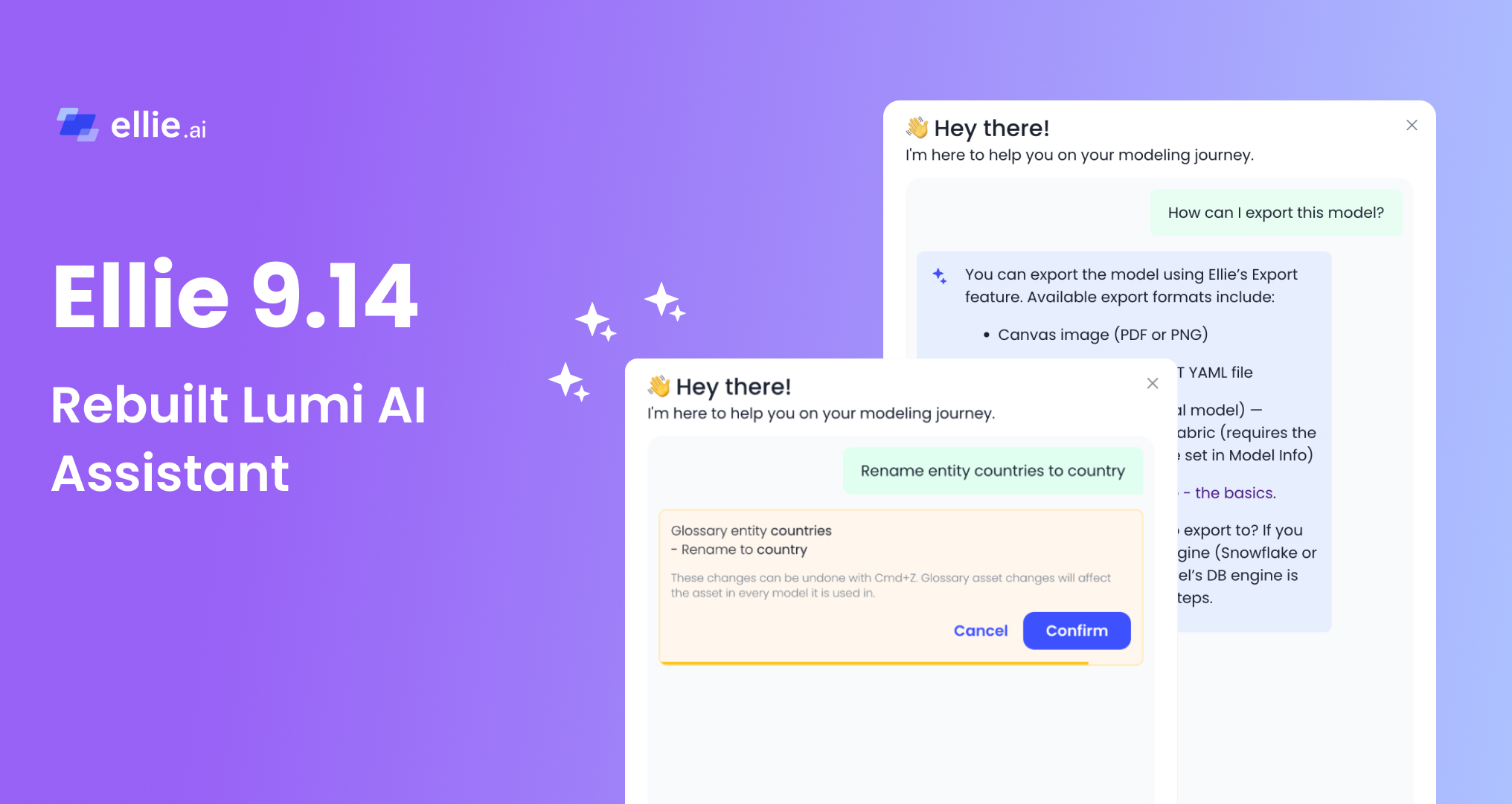

The canvas is where you shape a model with your team. The Lumi AI Assistant now works there with you: it can explain what’s already on the canvas, then apply changes, while you stay in the conversation.
You can ask the Lumi AI Assistant to explain your model in plain language, trace how entities connect, or point out gaps and inconsistencies. When you are ready to make a change, it can help you:
Write actions are available when you have permission to edit the model.
Lumi knows which type of model you have open. Its answers and available actions follow the same rules as the canvas:
On a conceptual model, attributes are still available. If you ask The Lumi AI Assistant to add an attribute, it will — it just will not offer that detail unless you ask.
You don’t have to add one entity, relationship or attribute at a time. A request like add Customer, Order, and Order Line, connect them, and give Order a status and order_date is enough. Lumi creates the set, lays the new entities out beside what you already have, and leaves the rest of the canvas where it is.
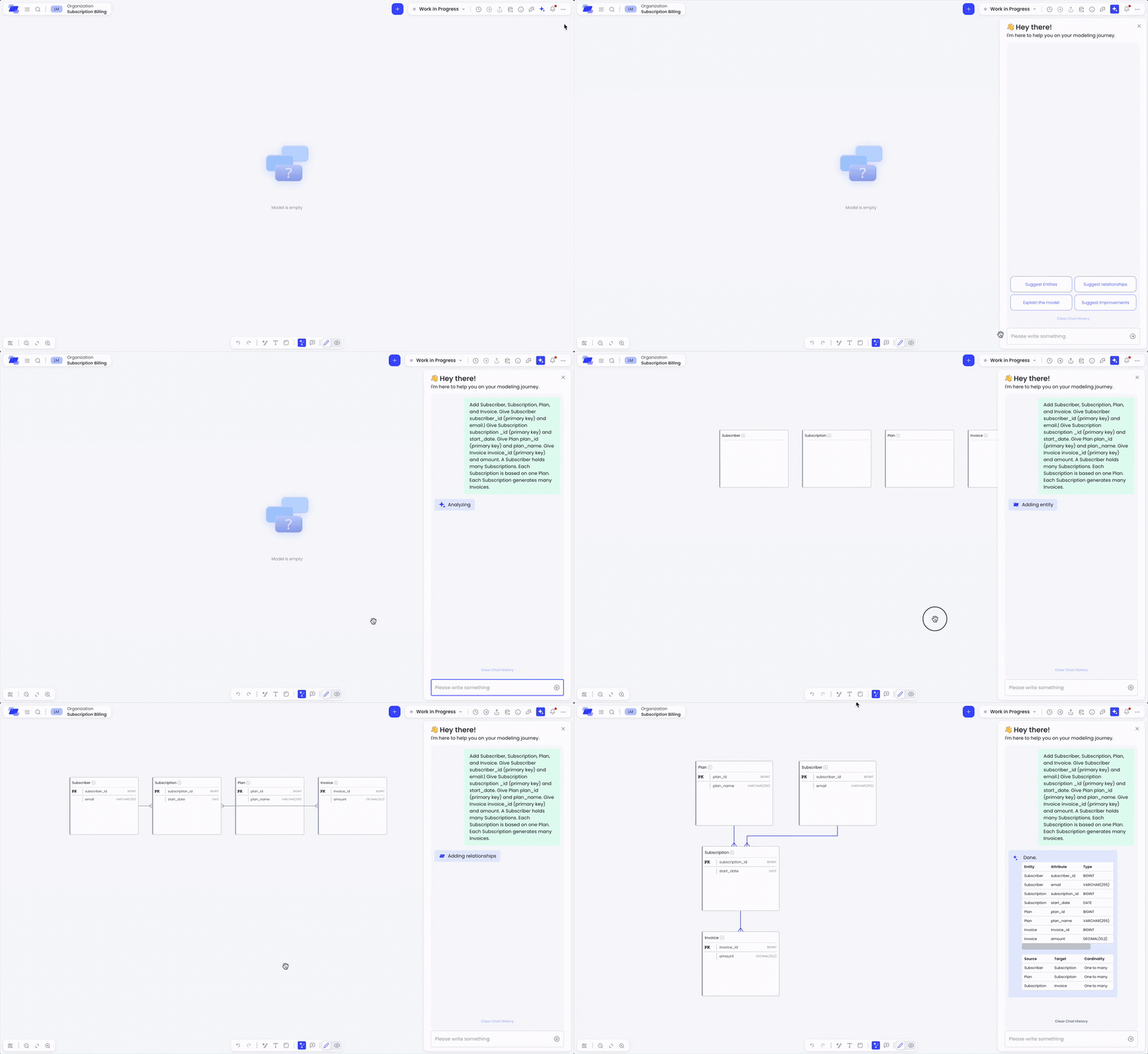
This is useful when you’re sketching a subject area, picking up a handful of tables from a spec, or renaming a group of assets in one pass.
Paste a CREATE TABLE script into the conversation. Lumi turns tables into entities, columns into attributes, and foreign keys into relationships, including the column mappings on physical models.

Lumi AI Assistant asks you to confirm changes that remove content or may affect shared glossary assets. The confirmation appears directly in the conversation and describes what will happen before anything changes.

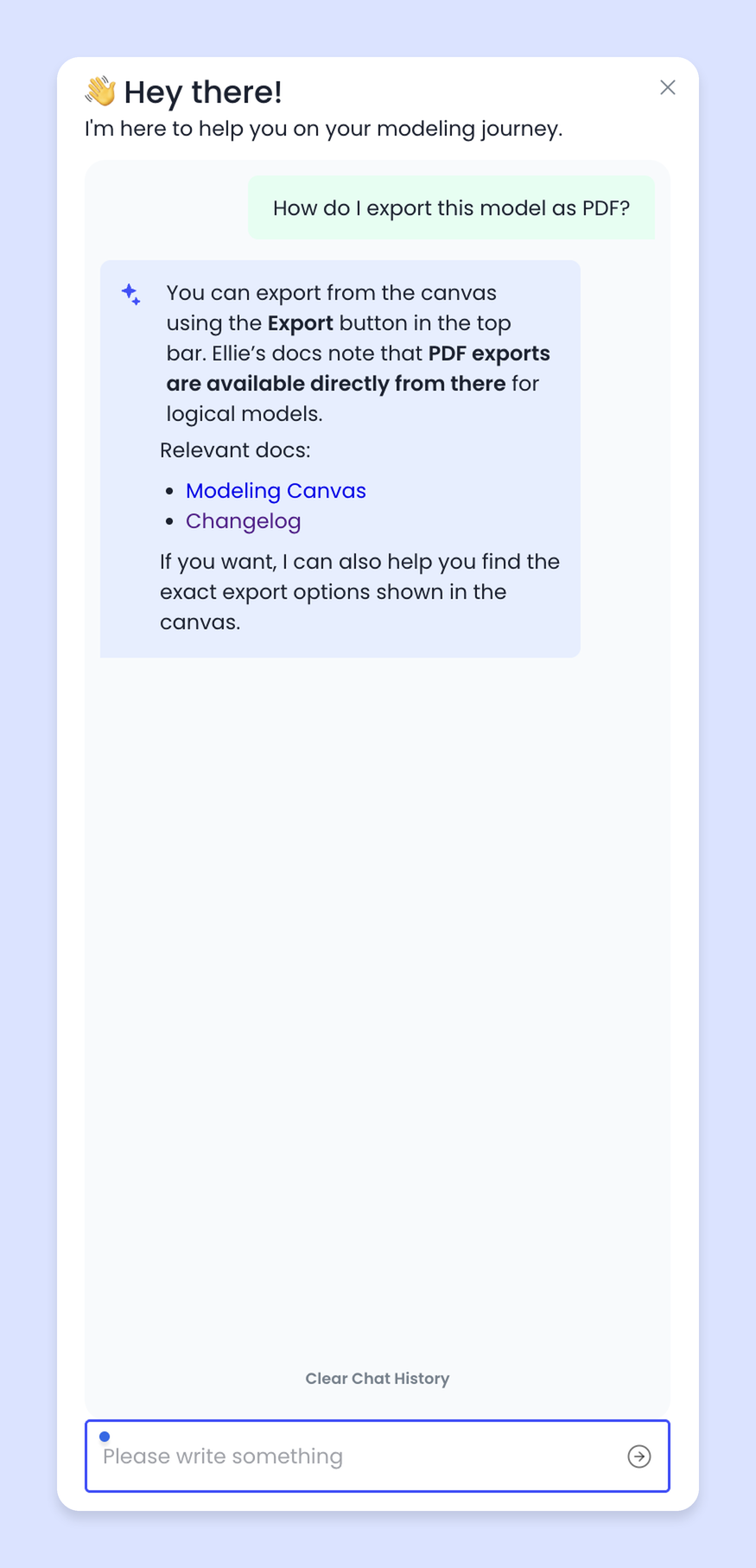
Lumi AI Assistant can search Ellie’s user guides when you ask how a feature works.
The Lumi AI Assistant uses your organization’s configured AI provider and model. If AI is already configured for your organization, there is no separate setup.
Admins can review the available options in the AI Provider Configuration guide.
The Lumi AI Assistant can help you get a model onto the canvas even when Ellie has no importer for that format.
Read the suggested process: Importing natively unsupported formats with Lumi AI assistant guide
If you need help configuring AI or want to share feedback, contact support@ellie.ai or use in-app help.