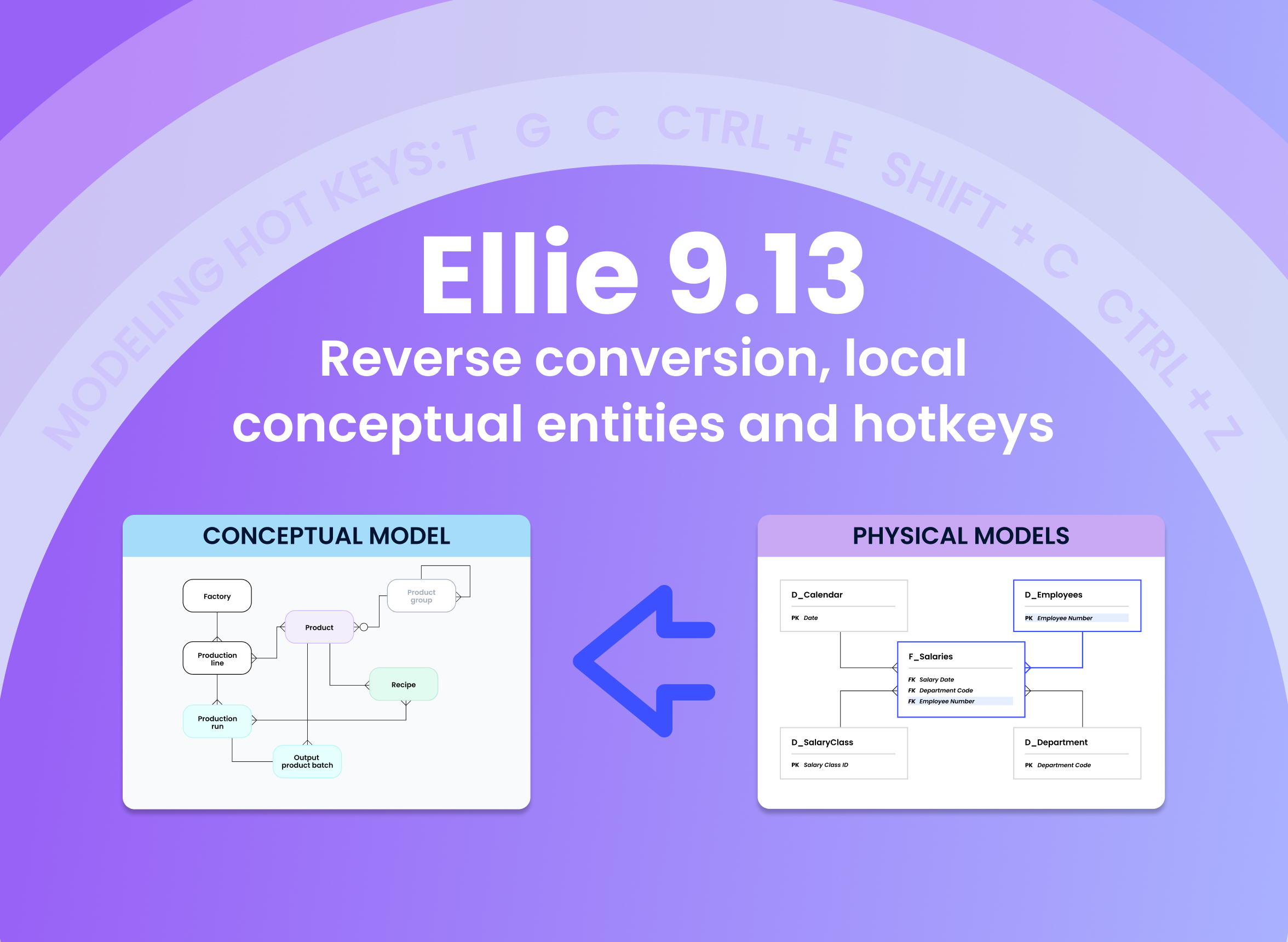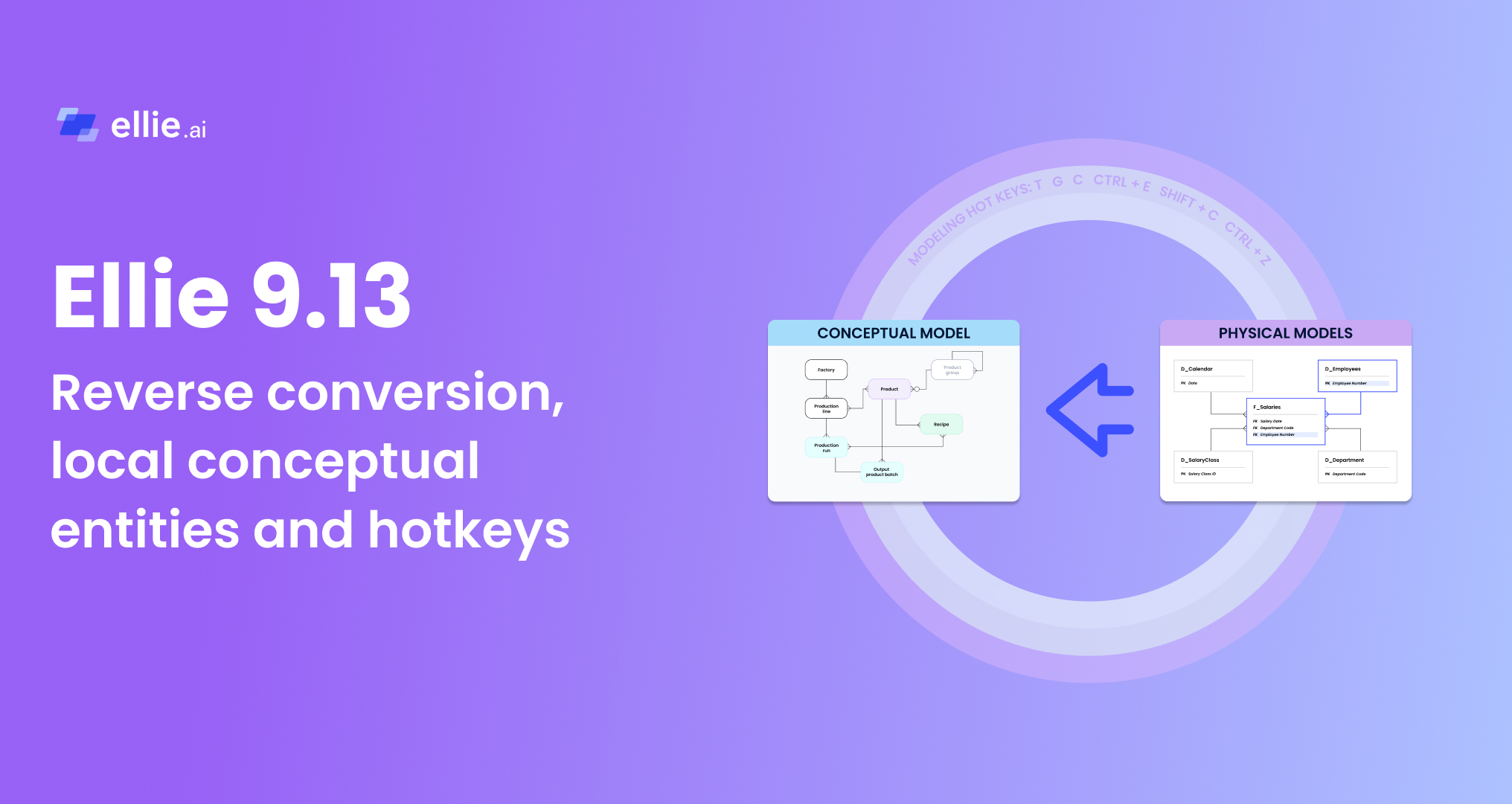

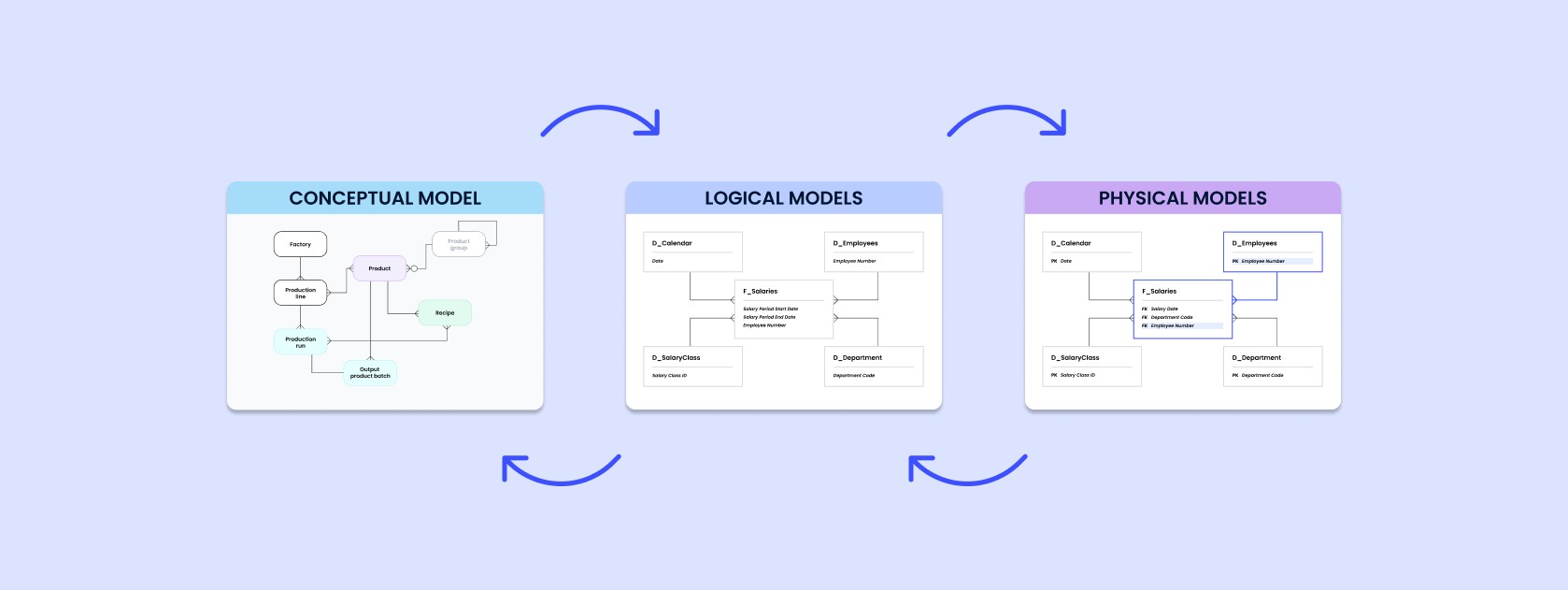
Your work does not always start from a blank conceptual canvas. Sometimes you already have a physical implementation to start from. That is when reverse engineering helps: convert the model you have in Ellie to a conceptual draft, without redrawing the diagram.
Similar to forward conversion from conceptual toward physical, you can now convert back from physical to conceptual. This way you can talk about meaning with the business from a model you already have.
On any model, open Convert model in the top toolbar. The menu now lists the levels you can convert to. You can convert from any level to any other level. Convert creates a new model; the original stays as it is.
The converted model always consists of local entities. This way you can start drafting without messing up the existing glossary. Once you are ready, you can promote the local entities to the glossary, or replace the local entities with existing glossary entities.
See the Model conversion guide.
Local entities used to be available only on logical and physical levels. Conceptual entities always went straight into a glossary. That made early sketches heavier than they needed to be: a working name became reusable before the team agreed on it.
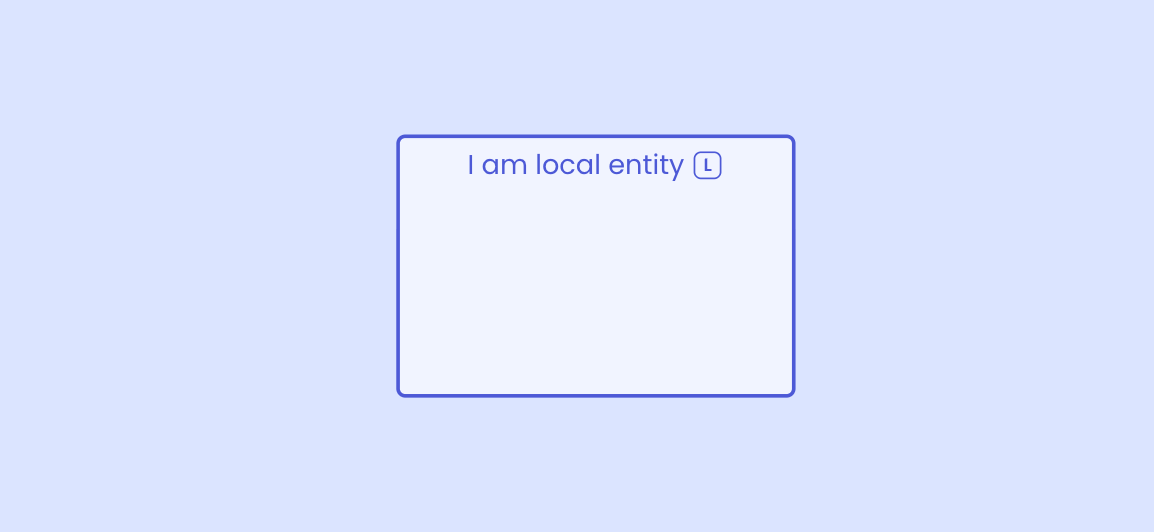
Now, new conceptual entities are local by default. They exist on this model only. They do not appear in folder search or in the glossary until you add them.
A local icon on the entity marks the difference. When a concept is ready to reuse, open the entity menu and choose Add to glossary. Select several local entities and right-click to add them all at once.
You can still create a glossary entity in one step. In Search or Create Entity, type a name and choose Local in model or In current glossary. Search still finds existing glossary terms, so reuse stays easy when you want it.
The model API follows the same rule: omit folderId on a conceptual entity to keep it local.
See Local assets, Folders and glossaries and Entities: bulk actions.
A few new hotkeys, and the canvas feels different. Your hands stay on the keyboard; your eyes stay on the model.
Existing shortcuts for undo, redo, copy, and paste are still there.
Questions or feedback? Reach us at support@ellie.ai or through in-app help.