
Ellie 9.24: Copy paste and sticky name column
This release brings copy paste to all models, as well as a sticky name column in your large attributes tables.
Copy paste
Reuse what you already have with ease! Copy anything on the model, and paste it where you want to use it.
✅ Paste keeps assets linked to the glossary
✅ Paste as local detaches assets from the glossary
✅ Cross level copy paste
✅ Merge into existing (if you have overlapping entities)
✅ Conflict resolution
✨ (bonus) Use Ctrl+A (⌘+A on Mac) shortcut to select all
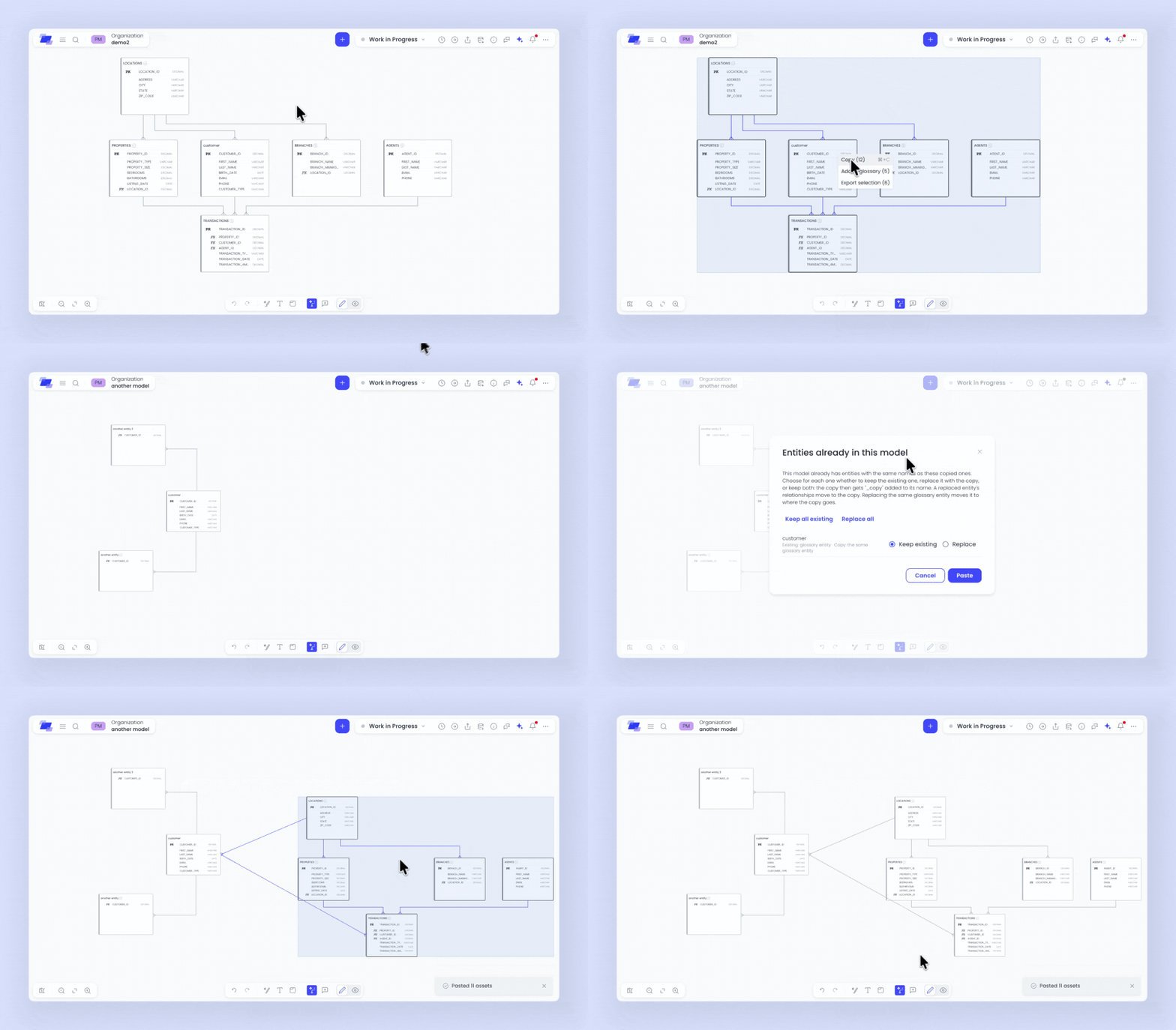
How it works
- Select what you want to copy: hold Shift and drag a box around entities, groups and textboxes, or hold Ctrl (⌘ on Mac) and click to add them one by one. Relationships between the selected entities come along.
- Copy with Ctrl+C (⌘+C on Mac), or from the context menu.
- Paste on the canvas with Ctrl+V (⌘+V on Mac) to keep assets linked to the glossary, or Ctrl+Shift+V (⌘+Shift+V on Mac) to paste as local. You can also paste from the context menu on an empty part of the canvas.
Use cases
There are many things to use copy paste for. Here are some examples:
Creating a mega model: When you have multiple smaller models from different domains, and now you want to merge them all into one larger model. Most likely you will have some overlapping entities, and you want to merge them into one. This is what paste was mainly designed for. It merges common things, while trying to maintain the shape of paste as much as possible.
Reuse existing to build new: You have nicely shaped diagrams in your organization. Now you want to pick some pieces and reuse them in a new project. So now you can do it easily, with the granularity you want: copy just attributes, copy a few entities, or copy a whole model.
Moving between levels: If you felt restricted by the model conversion feature, now you have one more way to move between levels. With copy paste you can move smaller pieces between levels when you need them. Think of it as partial model conversion.
Read more about copy paste in our documentation.
Attributes table sticky name column
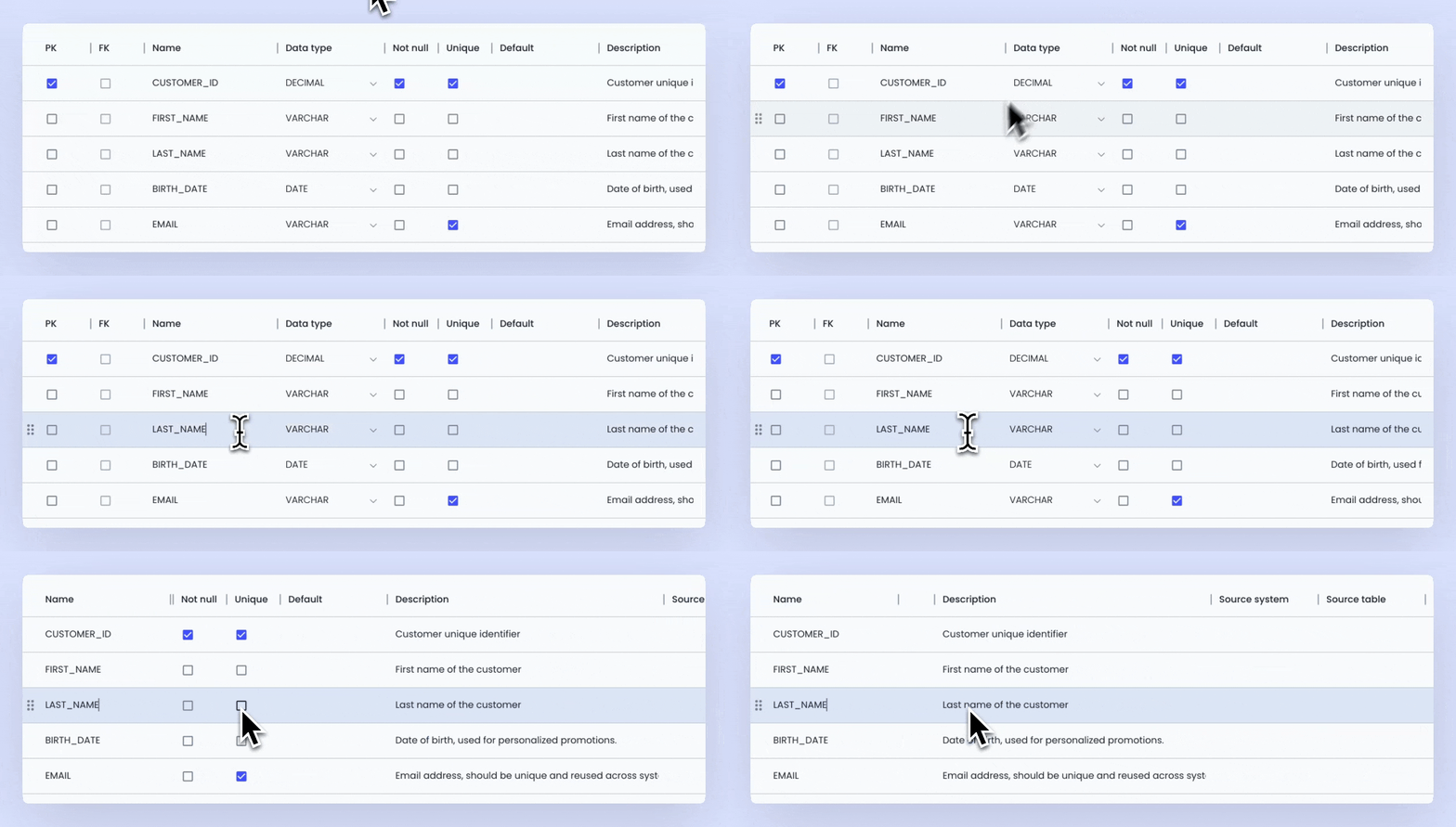
The more metadata you have, the harder it is to navigate. Now in the attributes table, the attribute name is always in view. So you always know which attribute you are looking at, no matter how far you scroll.
Give it a try, and reach out to us at support@ellie.ai or through in-app help if you have any questions or feedback.
Ellie.ai Team
Ellie.ai
The team behind Ellie, writing about semantic data modeling, enterprise data architecture, and building the backbone for trustworthy AI.